 Mic Test
Unsupported Browser Issues and Fixes: How to Update, Reconfigure and Restore Website Compatibility
Encountering an unsupported browser error stops your workflow instantly. This happens when a website rejects your connection because it detects missing security standards or an unrecognized browser engine. While clicking the update button is the most common advice, this error is often triggered by deeper conflicting privacy settings or outdated operating systems.
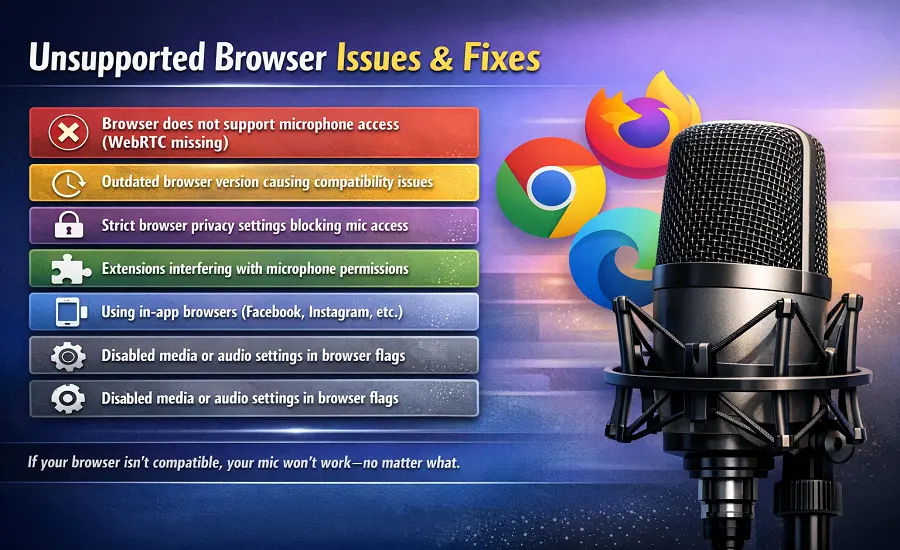
An unsupported browser message does not always mean you are using the wrong application entirely. Sometimes the website is misidentifying a modern browser due to a corrupted user agent string or a restrictive ad blocker. This guide explains how to bypass browser compatibility blocks and restore your access to vital web tools.
🌐 What an unsupported browser error actually means
When you visit a web application like Google Docs or Microsoft Teams, the website automatically runs a compatibility check in the background. It reads your browser version and inspects the active security protocols. If your software falls below the minimum browser version required by the developers, the site will forcefully block your access.
This block prevents broken features and massive security vulnerabilities. Modern web apps rely on advanced real-time audio components and secure local storage methods. If your outdated browser cannot safely render these components, the website simply shows an unsupported browser message instead of loading a broken page.
📋 How to check website browser requirements and minimum versions
Before you spend hours dismantling your software configuration, verify the official supported browsers list for the specific website you want to visit. Major platforms operate on rolling release schedules. They usually support the current version minus one or the latest three versions of Google Chrome, Microsoft Edge, and Mozilla Firefox.
Check the help center of the software you are trying to reach. For example, Google Workspace clearly defines its browser support policy and regularly drops support for older environments. Knowing the exact browser requirements stops you from trying to fix a version gap that cannot actually be overcome without an update.
💻 Outdated browsers vs unsupported operating systems
Many users discover they cannot update their browser because their operating system is fundamentally obsolete. Browser vendors eventually halt development for older systems completely. For example, Google Chrome stopped delivering updates to Windows 7 and Windows 8.1 users when version 109 was released.
If your hardware is running an unsupported operating system, downloading a new browser installer will fail. To regain modern browser support you must update your machine to Windows 10, Windows 11, or macOS 12 Monterey at a minimum. Upgrading the underlying operating system is the only permanent fix when the system framework itself blocks newer software.
🍪 Why JavaScript, cookies and third-party cookies matter
A fully updated browser can still trigger an unsupported browser error if core web standards are disabled. Web applications require JavaScript to render interactive interfaces. If JavaScript is disabled in your site settings, tools like Adobe apps or Whereby will immediately classify your modern browser as unsupported.
Similarly, many embedded sign-in dialogs break completely if third-party cookies are blocked. Developers use cookies to maintain your secure session across different domains. Enabling cookies and double-checking your privacy parameters can instantly resolve compatibility errors on portals that rely on strict background tracking.
🛡️ Extension, ad blocker, VPN and firewall conflicts
Privacy extensions are notorious for causing false compatibility alerts. Ad blockers and script blockers routinely cut off the background files that websites use to verify your browser engine. When this happens the website assumes you are running a legacy browser and throws a compatibility issue warning right on the screen.
You should temporarily disable extensions to see if the error disappears. Sometimes a strict VPN conflict or a heavy antivirus block intercepts the secure HTTPS connection entirely. Whitelisting the website through your firewall or temporarily disabling the parental control block can restore normal web communication.
🧹 Cache, cookies and stale browser data
Your browser caches website files to speed up loading times on future visits. However, if a website pushes a major platform update, your corrupted cache might force the browser to load retired legacy files. The server then detects this mismatch and delivers an unsupported browser error because your stale site data is completely out of sync.
The fastest way out of this trap is to clear cache and cookies completely. Deleting your browsing data forces the application to download a fresh, compatible version of the webpage. This simple reset clears out hidden session conflicts and helps identify if you actually have blocked permissions hiding behind a fake version error.
🕵️ User-Agent detection and browser misidentification
Every time you visit a webpage, your browser sends a User-Agent string that announces its name and version number. Some older sites rely on poorly coded browser detection scripts to read this string. When major Chromium-based browsers reached version 100, many legacy enterprise sites misinterpreted the three-digit version issue as a very old two-digit release.
This browser misidentification tells the website you are using an ancient program even though you are fully updated. If a site firmly refuses to load, you can use a developer extension to spoof your User-Agent string. Changing the string forces the site to see you as a compliant visitor so the common underlying issues can be bypassed.
🏢 Unsupported environments: Citrix, VMware and VDI
Corporate workers often face frustrating browser limits when accessing web portals through virtualized workspaces. Official Microsoft Teams documentation explicitly warns that running within a Virtual Desktop Infrastructure (VDI) like Citrix or VMware heavily restricts media compatibility. The virtual browser simply lacks direct access to the local hardware layer.
If a line-of-business app throws an unsupported browser message inside a virtual desktop, the environment is likely blocking the required media streams. You usually have to launch the application outside the remote container directly on your native operating system. Running natively fixes audio drops and guarantees the hardware routing operates securely.
🛠️ Browser-specific fixes for Chrome, Edge, Firefox and Safari
Each major browser requires a slightly different approach to restoring compatibility. Google Chrome users should open the settings menu menu and click About Chrome to force an immediate background update. If the browser gets stuck downloading the newest patch, you may need to entirely reinstall the browser to fix the broken profile.
Safari users must remember that their browser updates are strictly tied to Apple system releases. You cannot update Safari independently without downloading the latest macOS patches. Firefox users should verify their privacy shields aren't set to strict mode, as overly aggressive tracker blocking breaks dynamic site loading continuously.
☠️ Legacy browser dead ends: Internet Explorer and Safari for Windows
Some users remain stuck on software that has reached terminal end of support. Internet Explorer 11 is officially retired and lacks the modern encryption methods required by the current internet. Using IE mode in Edge might load simple text pages but it will fail entirely when dealing with real-time media tools.
Apple abandoned Safari for Windows more than a decade ago. If you still have this installed on a PC, no amount of troubleshooting will make it compatible with modern applications. The only solution for these legacy browser problems is to switch to a supported browser like Chrome or Firefox to improve overall performance drastically.
🛑 When the website is the problem, not your browser
Do not assume the unsupported browser message is always your fault. Highly specialized or unmaintained websites occasionally enforce incredibly narrow browser requirements. They might specifically demand an old version of Firefox or hard-reject any mobile browser trying to access the desktop portal.
When a website uses aggressive and outdated compatibility checks, your best option is testing another modern browser to see if the webmaster whitelisted a different browser engine. It helps to recognize that testing your equipment across multiple platforms highlights developer flaws rather than hardware defects.
⚙️ How to prevent unsupported browser issues
Preventing compatibility errors is much easier than fixing them during a crisis. Always leave automatic browser updates enabled so security patches download immediately in the background. Upgrading your operating system regularly ensures your machine never loses access to the latest Chromium or WebKit releases.
Keep your active extensions minimal and regularly verify your site settings to guarantee JavaScript and cookies remain active. Taking a proactive approach ensures you always meet the strict web standards required by modern applications. A clean browser environment guarantees you can work, stream, and communicate without unexpected software roadblocks.
Want to check if your browser supports mic testing? Use our Mic Test Tool to confirm microphone input instantly.
Test Your Microphone