 Mic Test
Mic Permission Blocked? Fix Browser, OS, and Site-Level Microphone Access Issues
If your microphone is not working on a website it is rarely completely broken. Most of the time it means that microphone access is blocked at the site, browser or operating system level. Browsers like Google Chrome and Safari restrict microphone access by default to protect your privacy and ensure no app listens without permission.
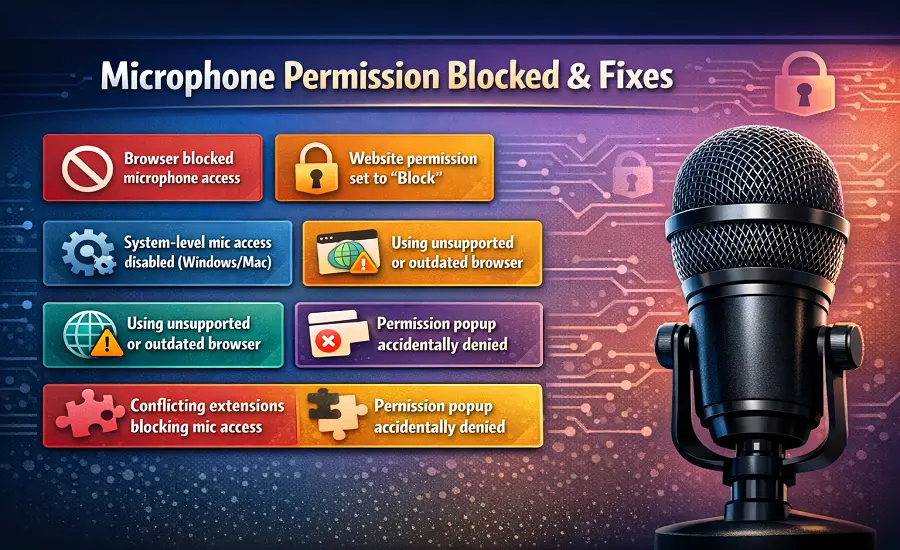
When a browser could not access the microphone you might see an error like NotAllowedError or the page might simply fail silently. Fixing this requires checking the permission chain from the specific website up to your main system settings. This guide explains why your microphone is blocked and how to fix it across Windows, macOS, Android and all major web browsers.
🔒 What “Mic Permission Blocked” Actually Means
A blocked microphone means that the exact software you are using does not have authorization to request audio input. This block can happen at the specific website level if you clicked Block on the permission prompt. It can also happen at the browser level if the browser app itself lacks OS permission.
Sometimes the block happens because of technical security rules. Web browsers require a secure context which means a page must use HTTPS to use MediaDevices.getUserMedia(). If a page is not secure the browser blocks microphone access automatically without showing any warning prompt. Understanding where the block occurs is the fastest way to solve the issue permanently.
🌐 How to Fix Blocked Microphone Access in Chrome, Edge, Firefox, and Safari
If the microphone access denied error happens only on one website you need to adjust per-site permissions. In Google Chrome and Microsoft Edge click the lock or tune icon next to the website address bar. Find the microphone option in the dropdown list and change it from Block to Allow. Refresh the page to apply the new site settings and rejoin the call.
In Mozilla Firefox click the microphone icon with a red line through it in the address bar. You can clear blocked permissions from there or go to Page Info Permissions to manage the allowed list. In Safari on macOS open the Safari menu then click Settings for This Website and change the microphone dropdown to Allow. If you chose "Remember this decision" previously you must manually change these settings to remove the site from the blocked list.
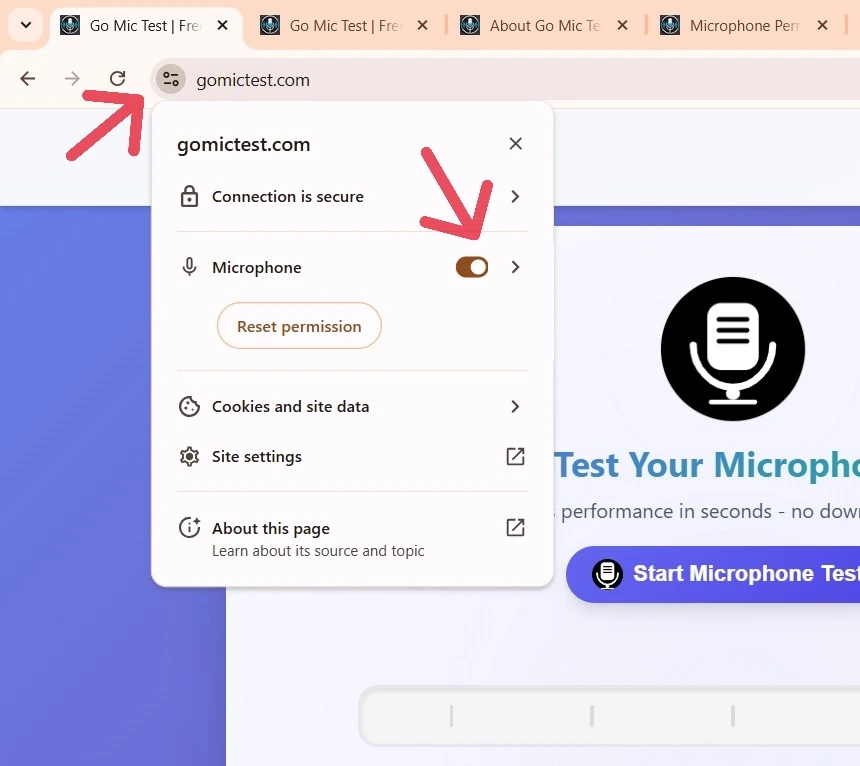
Figure 1. Browser Permission settings for Microphone
💻 Windows and macOS Privacy Settings That Override Browsers
Browser permission alone is not enough if the operating system denies access. In Windows 11 and Windows 10 you must let apps access your microphone at the system level. Press Windows + I to open system settings then go to Privacy & Security under the Microphone section. Turn on the main microphone access toggle and make sure "Let desktop apps access your microphone" is also enabled.
On macOS you need to grant browser app permissions in the system preferences. Open System Settings and navigate to Privacy & Security then click Microphone. Check the box next to Google Chrome, Safari or any other web meeting apps you use. If the browser is not listed you might need to restart the browser or trigger the permission prompt again to unblock the microphone.

Figure 2. Windows Privacy Microphone Settings
🚫 Why a Site Stops Prompting After You Click "Block"
When a website asks to use your microphone and you click Block the browser remembers that choice. Subsequent visits to the same page will not show a permission prompt at all. Users often assume the microphone is broken but the browser is just applying your saved per-site permission rule.
To fix this you must manually unblock the microphone. Click the lock icon in the address bar and switch the microphone setting back to Ask or Allow. If you accidentally blocked microphone access globally in your browser settings you will need to open the main privacy and security panel to reset site permissions across the board.
⚙️ No Permission Prompt Appears: HTTPS, iframe, or Policy Issues
If no microphone found message appears but there is no prompt to block or allow you might face a technical restriction. Browsers enforce a strict policy that microphones can only be accessed over a secure context or HTTPS connection. If you are testing a web recorder on an HTTP site the browser throws a NotAllowedError behind the scenes and blocks access entirely.
Sometimes a site cannot use your microphone because an embedded iframe is blocking it. Developers must add a specific microphone directive like "Permissions-Policy: microphone" to an iframe to allow access. If this policy is missing the browser microphone issue will persist even if you manually allow permissions in the address bar.
🎛️ Mic Allowed, but Still Not Working (Wrong Device or Mute)
Sometimes the permissions panel shows the microphone is allowed but you still cannot record. This often means the browser is listening to the wrong input device. Check the default recording device in your operating system sound settings. Simply selecting the correct microphone in the app or OS level can solve the problem instantly.
You should also verify that the microphone is not physically muted by a hardware switch or inline cable button. Reading through common microphone problems will help you identify if a USB microphone problem or low input level is causing the silence rather than an actual permission denied error.
🔄 Another App is Using the Microphone
If another application has exclusive control over your audio input device the browser will report a device busy or NotReadableError message. Apps like Microsoft Teams, Zoom, Discord or Skype frequently hold onto the microphone even when running in the background. Close these apps completely from your system tray to free up the hardware.
In Windows you can disable exclusive control to stop this from happening. Right-click the sound icon, select Sound settings, open your audio input device properties and uncheck "Allow applications to take exclusive control of this device". Sometimes a driver issue acts similarly causing the hardware to lock up until you restart your computer or update the driver.
🏢 Work Laptop or School Device Microphone Restrictions
If your microphone access toggles are greyed out or they revert to blocked immediately after you change them you are likely facing an enterprise policy. Computers managed by your organization often run Chrome Enterprise or use strict Windows policies that permanently disable microphone permissions for compliance reasons.
In these cases no amount of browser troubleshooting will fix the problem. You must contact your IT department to add your required web meeting apps or speech-to-text tools to their allowlist. Trying to bypass these restrictions using an Incognito window or a different browser profile usually fails because the block is enforced at the network or OS level.
🛡️ Privacy-Safe Defaults and Testing the Fix
After changing any privacy settings you need to verify the fix immediately. Refresh the page or restart your browser completely before testing again. By testing the microphone and checking your input levels you can confirm the audio is capturing correctly. Knowing why microphone testing matters helps you avoid entering important video calls with a silent mic.
We recommend keeping your default browser setting on "Ask" rather than universally allowing mic access. Only grant permanent access to trusted sites that you use daily. If your current mic is constantly giving you hardware errors despite having correct permissions, it might be time to read our guide on choosing the right microphone. Once you find a reliable device consider learning how to improve microphone quality to ensure your voice always sounds professional.
Ready to confirm your microphone? Use our Mic Test Tool to check sound input instantly.
Test Your Microphone