 Mic Test
Muted Microphone? How to Fix App, System, Hardware and Permission Issues
A muted microphone is one of the most common reasons why nobody can hear you during a call. Because voice input can be controlled by so many different programs at once, a mic stuck on mute might actually involve a hardware switch, an operating system setting, or a browser permission block.
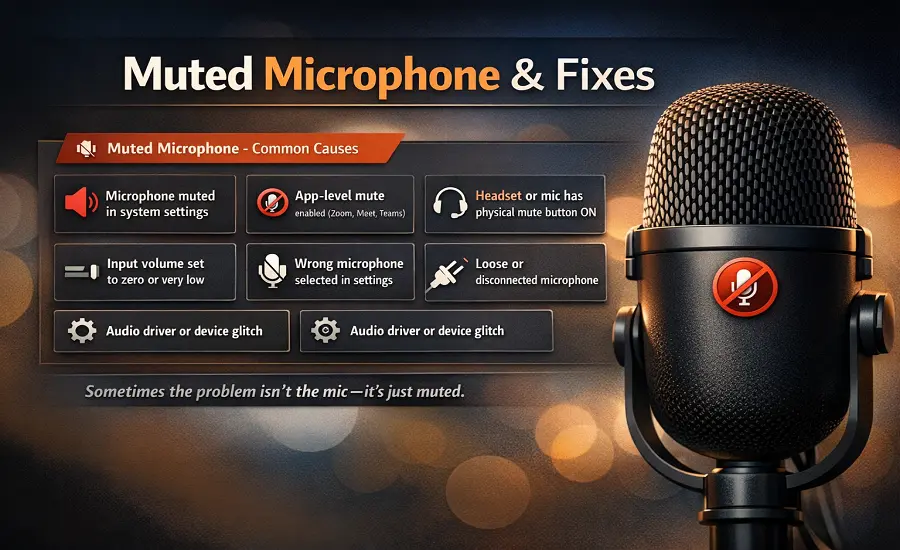
Finding the culprit requires checking each layer of your audio path. This guide explains why your microphone gets silenced automatically and how to unmute the microphone across Windows, macOS, Chrome, and your favorite meeting apps.
🔇 Why a microphone gets muted in the first place
A muted microphone is rarely one single software bug. It usually happens when multiple layers of software try to manage your default recording device simultaneously. For example, your operating system might leave the mic open, but the specific meeting app overrides it and forces a mute.
Laptops and headsets also throw physical hardware controls into the mix. If an inline mute switch is activated on your headset cable, no software configuration will capture your voice. Understanding each muting layer is the fastest way to get your audio working before your next meeting.
📞 Muted in Zoom, Teams, Google Meet or Discord
The most visible layer of muting happens directly inside your conferencing app. If the microphone icon is crossed out or you see a red mic light on screen, you are muted in the meeting at the software level. In Zoom, the meeting host actually has the power to prevent participants from unmuting themselves completely.
Microsoft Teams clearly displays its mic status on the main dashboard, but it also has hidden privacy toggles. Google Meet mic blocked errors often stem from the browser refusing to pass audio to the meeting. Discord users frequently experience a silent microphone simply because "Push to Talk" is enabled instead of continuous voice activity.
🎧 Physical mute buttons, inline headset controls and laptop mute keys
Before changing any software settings, always check the physical hardware. Many users spend hours troubleshooting when the real issue is a physical mute button pressed by mistake. Look closely at your USB microphone for an orange mute light or an active status LED.
If you use a wired headset mic run your fingers along the cable connection to find an inline mute switch. Many modern laptops also include a dedicated keyboard mute key on the top row that disables the microphone at the hardware level. Disabling this hardware switch instantly restores the audio input.
💻 How to unmute the microphone in Windows and macOS
Sometimes the operating system drops your input volume to zero. To fix this in Windows 11 or Windows 10, right-click the speaker icon, open Sound settings, and check the Input settings. In the Sound Control Panel click the Recording tab to ensure your default input device is active and its volume levels are high.
If you use an Apple computer, finding the mute controls is slightly different. Open macOS System Settings, click Sound, and navigate to the Input tab. Select your connected speaker or headset and visually confirm the input volume slider is dragged to the right. Apple devices sometimes mute external microphones automatically upon first connection.
🔀 Wrong input device vs. muted microphone
Many users assume their mic won’t unmute when realistically the computer is just listening to the wrong hardware. If Windows selects your webcam microphone instead of your expensive USB microphone, your voice might sound incredibly distant or entirely silent. This looks identical to being muted.
Always verify your active recording device before panicking over a mute error. If the wrong input device is selected, no amount of unmuting will fix your audio quality. By setting the correct default recording device you bypass the mute symptom entirely.
🚨 “Your mic is muted by your system settings” error
This exact error haunts Google Meet users constantly. "Your mic is muted by your system settings" means Windows or macOS is explicitly blocking the browser from grabbing audio. This is almost always tied directly to Windows microphone privacy settings rather than a simple volume slider.
To resolve this, open your Windows Privacy & Security menu and locate the Microphone settings. You must toggle on "Allow apps to access your microphone" and ensure your browser is listed under desktop app access. If this remains toggled off the browser will throw this exact system error endlessly.
🔒 Microphone permissions that look like muting
A browser cannot share what it cannot hear. If Chrome site settings or Firefox microphone permissions block audio, the meeting tab acts as if you are muted. The URL bar lock icon is the fastest place to check browser permissions and see if a website is secretly blocked.
If you are on a school or work laptop, the settings might say "managed by your organization." In these enterprise environments, an administrator can restrict microphone access universally. No amount of clicking unmute will override a strict network security policy blocking the microphone permission directly.
🔄 Why the mic keeps muting itself
Few things are more aggravating than a mic that auto-mutes. This phenomenon is often tied to the Windows Communications settings located in the Sound Control Panel. Windows tries to auto-adjust microphone volume during calls which frequently forces the input level to drop to zero randomly.
A microphone that keeps muting itself might also indicate unstable drivers that crash under load. Open the Device Manager to reinstall the microphone driver completely. Reading more about driver fixes can stop third-party audio software from continually overriding your volume mixer.
✅ How to test the microphone after each fix
Never assume an unmuted microphone is working until you test it. Instead of blindly rejoining your meeting, start a test to play a recorded sample. Most conferencing platforms have audio testing tools built right into their settings menus so you can verify the audio inputs and outputs.
You can also use an independent mic checker to visually confirm sound waves are capturing properly. If you still encounter weird crackles or drops after unmuting, read through these common microphone problems. Taking two minutes to test confirms your setup is flawless, reminding you exactly why microphone testing matters. Once your voice is clear, look into how you can further improve microphone quality for professional-sounding meetings.
Want to confirm your microphone is active? Use our Mic Test Tool to check sound input instantly.
Test Your Microphone